
Accessing EudraVigilance Report Data
A mini-guide to the line report system

In this first post I thought it a good idea to provide directs links to AstraZeneca (Vaxzevria), Johnson & Johnson (Janssen), Moderna (Spikevax) and Pfizer (Comirnaty) COVID-19 biological products so subscribers can access EudraVigilance data for themselves1. The line report system may be accessed by clicking on the » symbol in the top right-hand corner of each landing screen…

When you arrive it should look something like this…
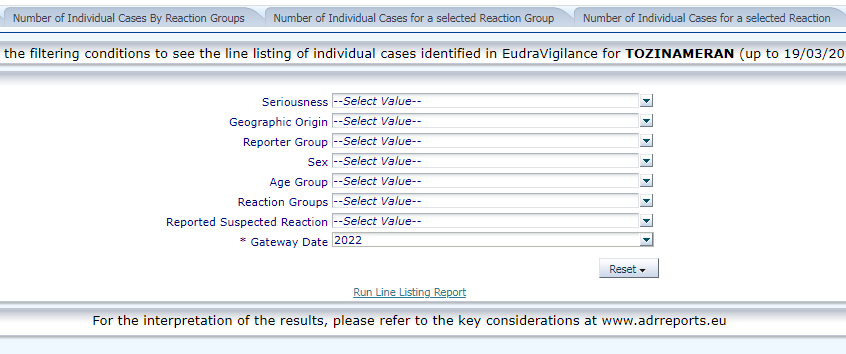
After that it’s up to you! If you open Reported Suspected Reaction you’ll get a massive drop down that is pretty much pointless. Instead of scrolling forever and a day I suggest you click on the More/Search… option…
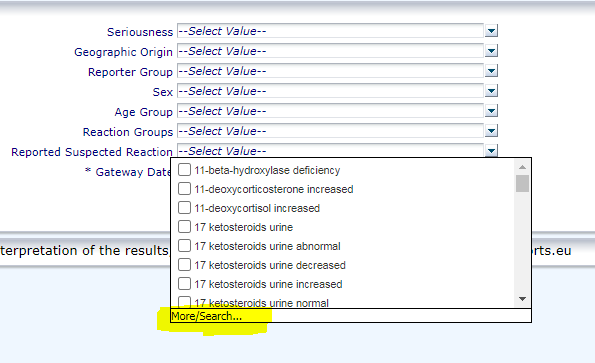
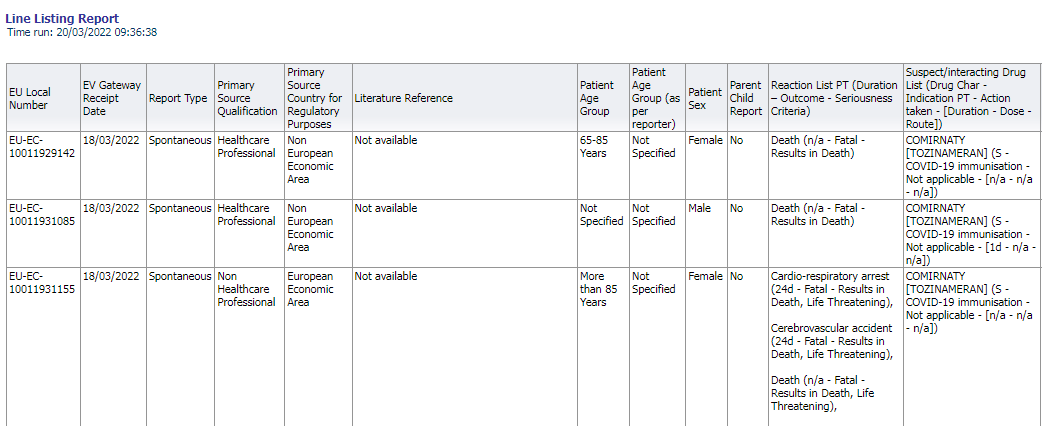
You can then enter keywords of interest; in this example I opted to search for ‘death’. Death comes in different flavours including apparent death but please do remember that even by choosing every single death option you will not get a listing of all deaths - all you get is a listing of deaths in which death has been coded as a reaction outcome (around a quarter of all fatal outcomes have death recorded as a reaction and that way we get around this will be explained below). Hit the hyperlink Run Line Listing Report and you’ll get something like this…
The next step is to scroll to the very bottom to obtain the four options of Return, Refresh, Print and Export…
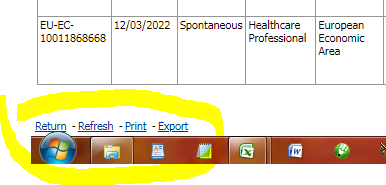
Export provides some tasty options including a dump direct to Excel, but if you are going to pull down a lot of records e.g. Pfizer reports for 2021 then I strongly recommend you go with Export/Data/CSV for the most compact file.
Big Data Limits
If the Exporting to CSV ‘clock’ takes more than 15 seconds to tick away then keep your eye on the file size as it is saved to hard disc. Here’s a snapshot of a hefty file at a count of 67.2MB that finally reached a size of 85MB….
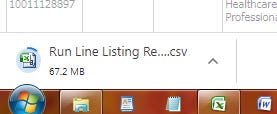
Files can reach 100MB - 105MB without problem but beyond this you’ll hit an internal system limit set at 250k records. The best way to check if the limit has been surpassed is dive to the bottom of your CSV for tell tale signs…
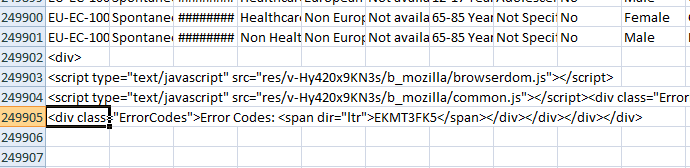
The only way around this I can see at present is to divide your query into smaller sub-sections then stitch several files together.
A word of warning! It is possible to create a whole bunch of duplicate records between files unless your filter selections are mutually exclusive (e.g. gender, report type, region). Seriousness, Reaction Group and Reported Suspected Reaction filters will produce duplicate records, though it is a trivial matter to remove these within Excel using the unique EU Local Number identifier.
When CSV is not CSV
I was brought up proper, which means that in a CSV file I expect the comma to separate fields. Not so with a EudraVigilance CSV file, where commas are used to separate fields and sub-strings within fields. Oh dear. If you try to pull the fields apart in Excel using the Text to Columns function expect a terrible mess! The true field separator is the string <BR><BR> which can be used as is or replaced with a semicolon.
How Do I Obtain All Fatalities?
Bizarrely, there is no option to pull down all fatal reports in one convenient query. The solution is to opt for pulling down all records where Seriousness is flagged as ‘serious’ and then flag all fatal reports stemming from serious conditions within a spreadsheet using a string search function such as =SEARCH(“Fatal”, L2).
Kettle on!
Facebook banned these for a while on grounds that they breached community standards but they seem to be allowing their promulgation these days.